
How to crop PDF pages
Scans often come with wide grey borders, slides with empty margins, and sometimes you only need part of a page. Cropping cuts that off so the content fills the page. Here’s how to crop PDF pages on Windows, for free.
Free forever – no watermark, no limits.
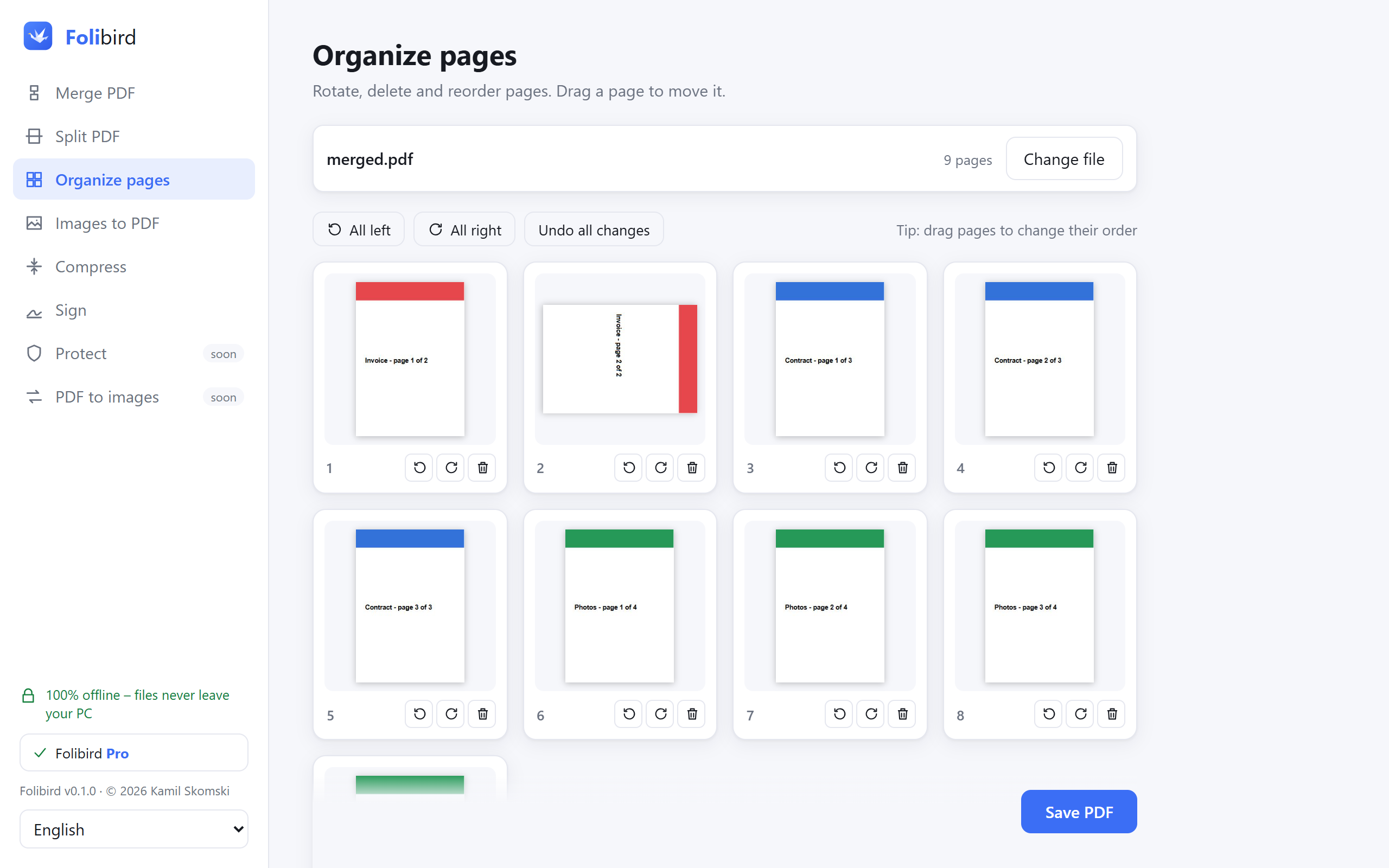
Step by step
Open Organize pages
Install Folibird, choose Organize pages and pick the PDF.
Click Crop
A window with the first page appears. Drag the frame or its corners around the part you want to keep.
Crop all pages
Click Crop all pages – the same frame is used on every page. You can also rotate, delete or add pages.
Save
Click Save PDF. The original file is not changed.
Why do it with Folibird
- Free forever
- Live preview of the frame
- Crop, rotate and reorder in one place
- Works offline
Frequently asked questions
Does cropping delete the cut-off content?
Cropping hides it – like most PDF tools, Folibird sets the visible area of the page. To permanently remove sensitive content, use Black out data.
Can I undo the crop?
Yes – before saving, click Change crop → Don’t crop. The original file always stays untouched.
More PDF guides
- How to sign a PDF without printing it
- How to fill in a PDF form without printing it
- How to make a PDF smaller to send by email
- How to merge PDF files into one
- How to password-protect a PDF
- How to add a watermark to a PDF
- How to convert JPG photos to a PDF
- How to edit existing text in a PDF
- How to make a scanned PDF searchable (OCR)
- How to permanently black out data in a PDF
- How to add page numbers to a PDF
- How to rotate PDF pages and save the change
- How to delete pages from a PDF
- How to convert PDF to JPG
- How to split a PDF