
How to permanently black out data in a PDF
Before you send a contract, a payslip or a scan of your ID, you often need to hide some details: a PESEL or ID number, an account number, someone’s address. The common mistake is drawing a black rectangle in an ordinary program – the text underneath is still there and anyone can copy it. Here’s how to remove it for good, on your own computer.
Pro feature – try it 3 times for free. Pro costs $13 once, no subscription.
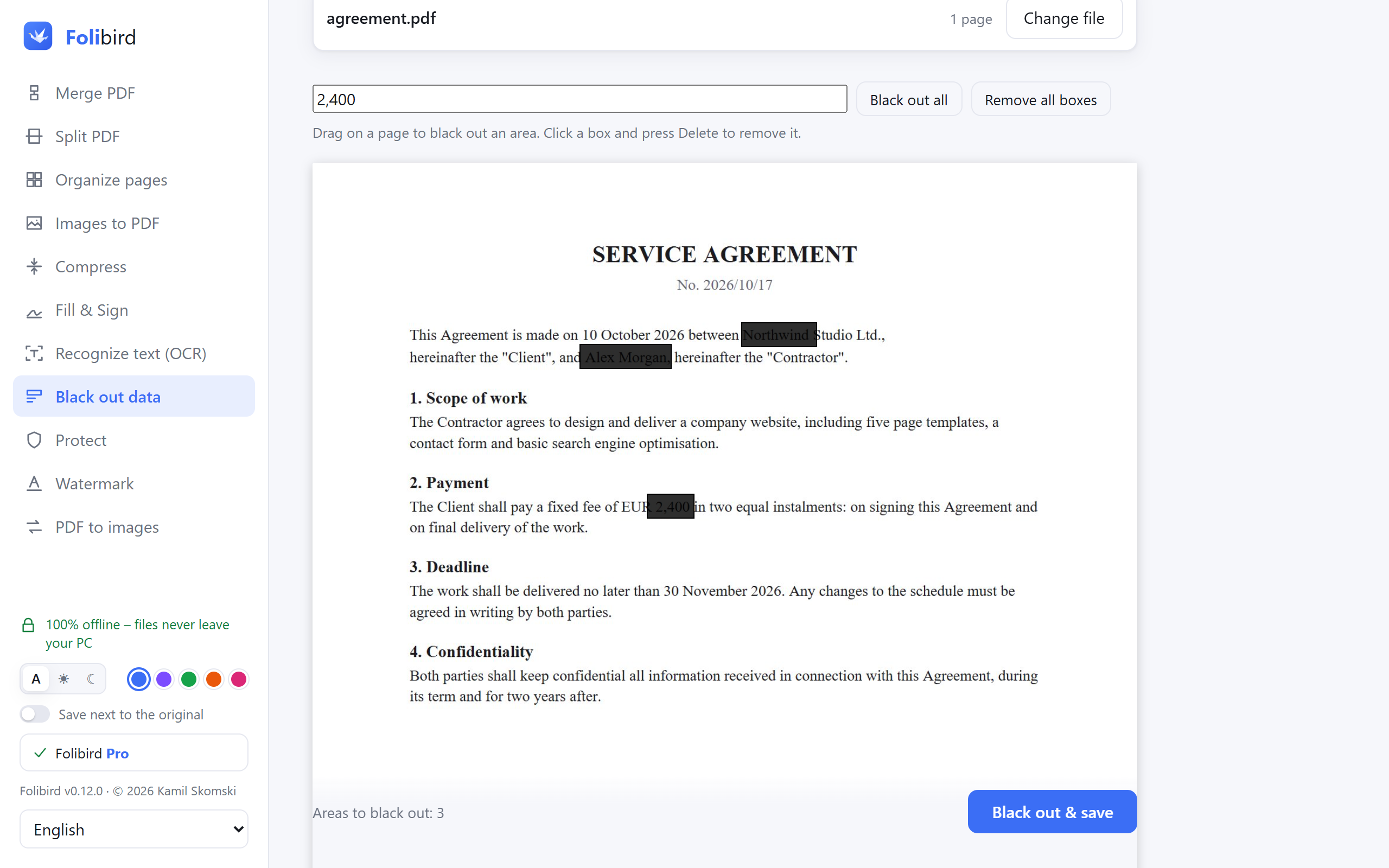
Step by step
Open Black out data
Install Folibird, choose Black out data and pick the PDF.
Mark what to hide
Drag over an area to black it out – or type a name or number into the search field and click Black out all to catch every occurrence on every page.
Check the boxes
Click a box and press Delete if you marked too much. The options let you keep the rest of the text searchable and remove hidden document info.
Save
Click Black out & save. Pages with black boxes are saved as images, so the hidden text is gone from the file for good. The original stays untouched.
Why do it with Folibird
- Real redaction – the text under the box is removed from the file
- Find and black out a name or number on every page at once
- Removes hidden document info such as the author
- Works offline – the sensitive document never leaves your PC
Frequently asked questions
Isn’t a black rectangle in Word or a PDF viewer enough?
No. Most programs just draw a shape on top – the text below can still be selected, copied or found with Ctrl+F. Folibird replaces the page with an image in which the area is black.
Can the blacked-out text be recovered?
No. On redacted pages the original text and images are not in the new file at all – only the picture of the page with black boxes.
Will the document still be searchable?
Yes, if you keep the OCR option on: the remaining text is recognized again, while blacked-out areas stay empty.
Does it work on scans?
Yes – just drag over the areas. Searching for text in a scan works after running Recognize text (OCR) first.
More PDF guides
- How to sign a PDF without printing it
- How to fill in a PDF form without printing it
- How to make a PDF smaller to send by email
- How to merge PDF files into one
- How to password-protect a PDF
- How to add a watermark to a PDF
- How to convert JPG photos to a PDF
- How to make a scanned PDF searchable (OCR)
- How to rotate PDF pages and save the change
- How to delete pages from a PDF
- How to convert PDF to JPG
- How to split a PDF