
How to password-protect a PDF
Sending a payslip, a medical report or a contract with personal data by email? Protecting the PDF with a password means that only someone who knows the password can open it. Here’s how to do it on Windows – without uploading a sensitive document to a website, which would defeat the purpose.
Pro feature – try it 3 times for free. Pro costs $13 once, no subscription.
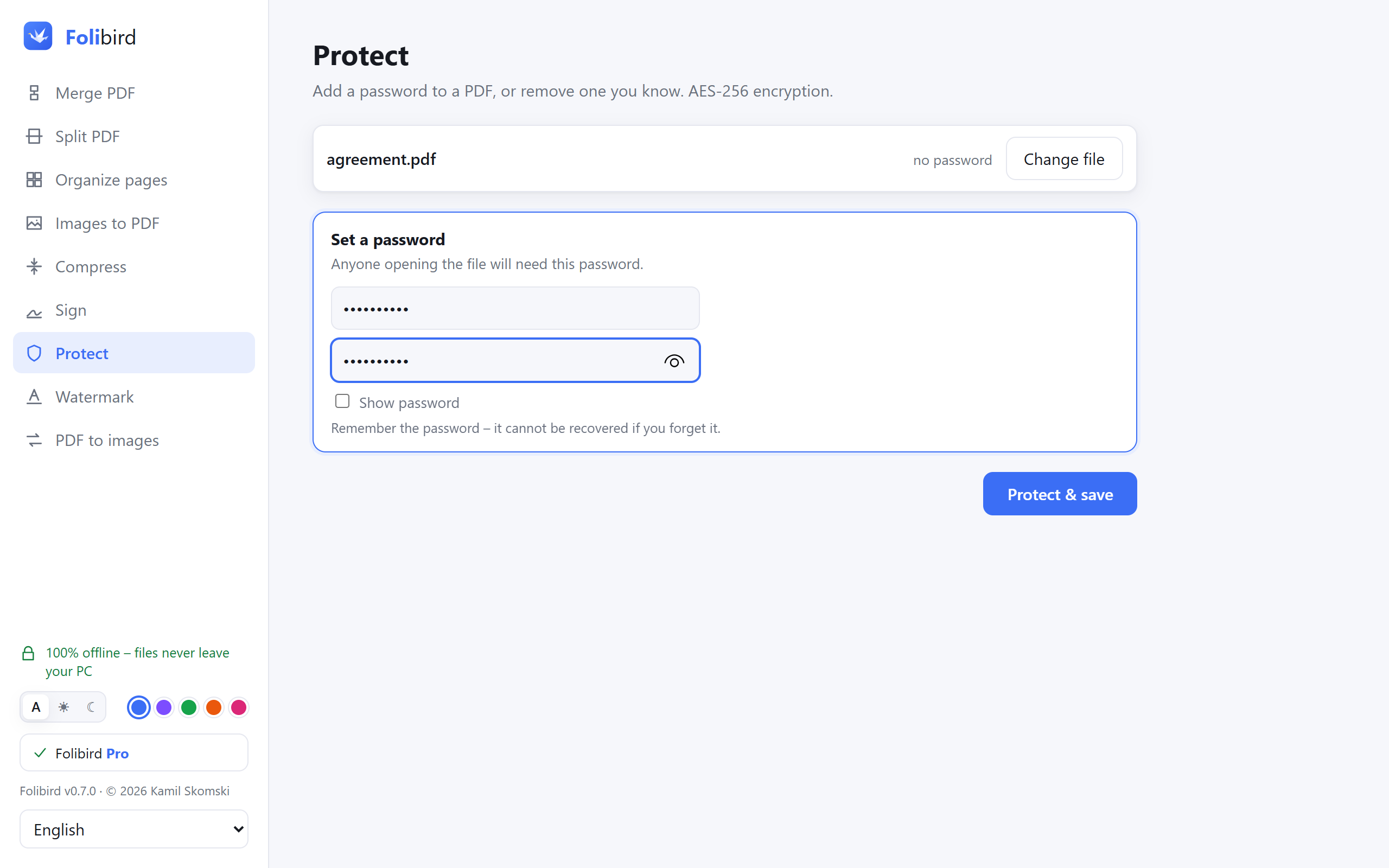
Step by step
Open the Protect tool
Install Folibird, choose Protect and pick the PDF. Folibird shows whether the file already has a password.
Type the password twice
Choose a password and type it again to make sure there’s no typo. Tick Show password if you want to see it.
Protect and save
Click Protect & save. You get a new, encrypted copy; the original is not changed.
Send the password separately
Email the PDF, but share the password another way – by text message or phone call. Then even a forwarded email doesn’t reveal the document.
Why do it with Folibird
- Strong AES-256 encryption – opens in Adobe, Edge, Chrome and on phones
- The document is encrypted on your PC; it never goes online unprotected
- Remove a password you know in the same tool
- No account, no subscription
Frequently asked questions
Can I remove a password from a PDF?
Yes, if you know it. Open the PDF in Protect, type the password and click Remove password & save. Removing a password is free.
What if I forget the password?
It can’t be recovered – that’s what makes the encryption secure. Keep the unprotected original or write the password down somewhere safe.
Is adding a password free?
Adding a password is a Pro feature that you can use 3 times for free.
How strong should the password be?
Use at least 10 characters, ideally a few random words. Avoid birthdays and names – they are the first thing anyone would try.