
How to convert PDF to JPG
You need a PDF page as a picture – for a presentation, a social media post, a form that only accepts images, or to send in a messenger. Here’s how to turn PDF pages into JPG or PNG files on Windows, for free and offline.
Free forever – no watermark, no limits.
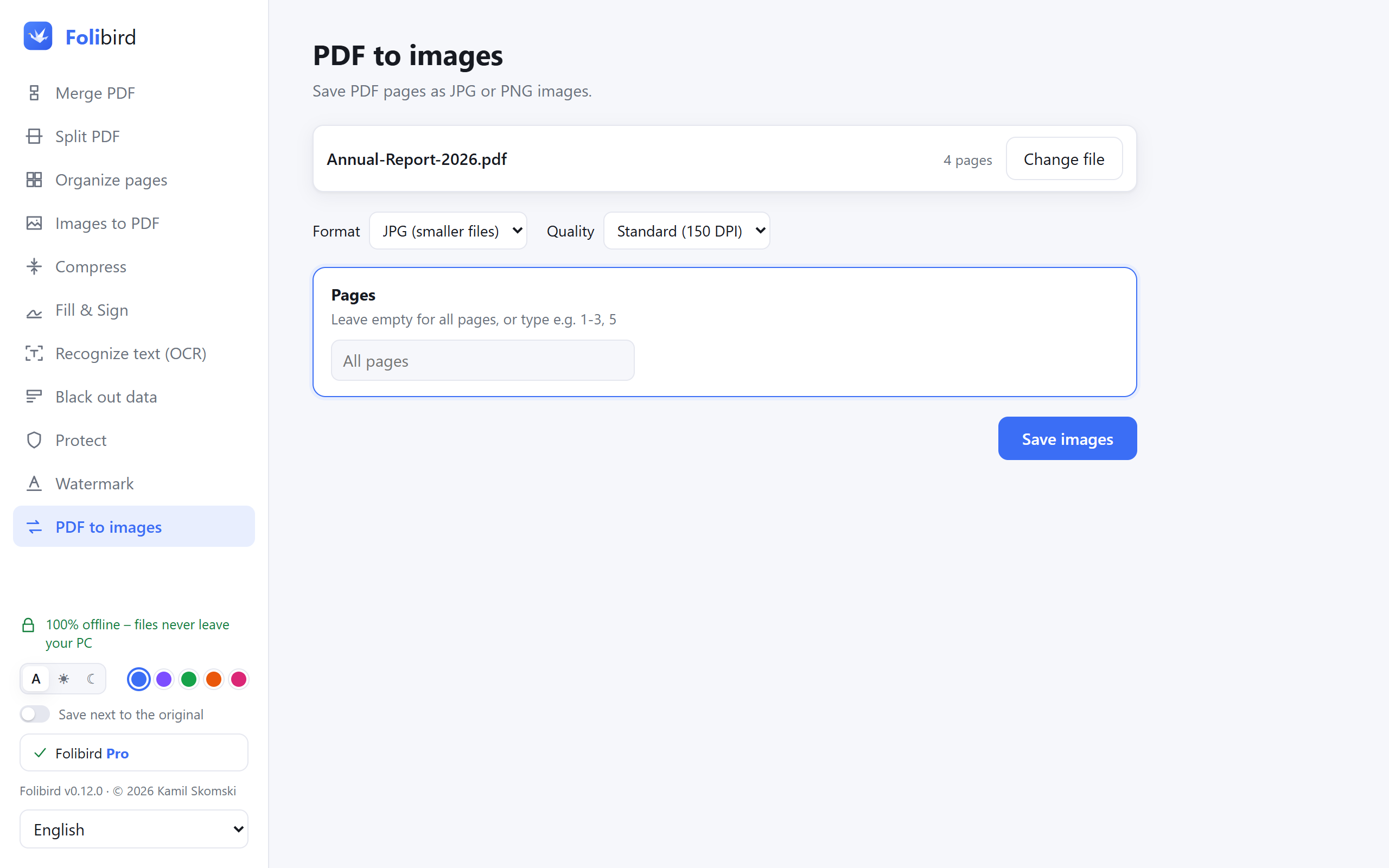
Step by step
Open PDF to images
Install Folibird (free), choose PDF to images and pick the PDF.
Choose the format and quality
JPG gives smaller files, PNG perfect quality. Standard (150 DPI) is fine for screens; choose 300 DPI for printing.
Pick the pages
Leave the field empty to save every page, or type e.g. 1-3, 5.
Save the images
Click Save images and choose a folder. Every page becomes a separate, numbered file.
Why do it with Folibird
- Free forever, no limits
- JPG or PNG, up to 300 DPI
- All pages or only the ones you need
- Files never leave your computer
Frequently asked questions
Which is better, JPG or PNG?
JPG for photos and scans (smaller files), PNG for text and diagrams (perfectly sharp).
What DPI should I choose?
150 DPI for viewing on screen and sending, 300 DPI for printing.
Can I do the opposite – JPG to PDF?
Yes, with the free Images to PDF tool.
More PDF guides
- How to sign a PDF without printing it
- How to fill in a PDF form without printing it
- How to make a PDF smaller to send by email
- How to merge PDF files into one
- How to password-protect a PDF
- How to add a watermark to a PDF
- How to convert JPG photos to a PDF
- How to make a scanned PDF searchable (OCR)
- How to permanently black out data in a PDF
- How to rotate PDF pages and save the change
- How to delete pages from a PDF
- How to split a PDF