
How to delete pages from a PDF
A scan has an empty page, a document has pages you don’t want to send, or a long PDF needs trimming. Here’s how to remove pages from a PDF on Windows, for free and without uploading it anywhere.
Free forever – no watermark, no limits.
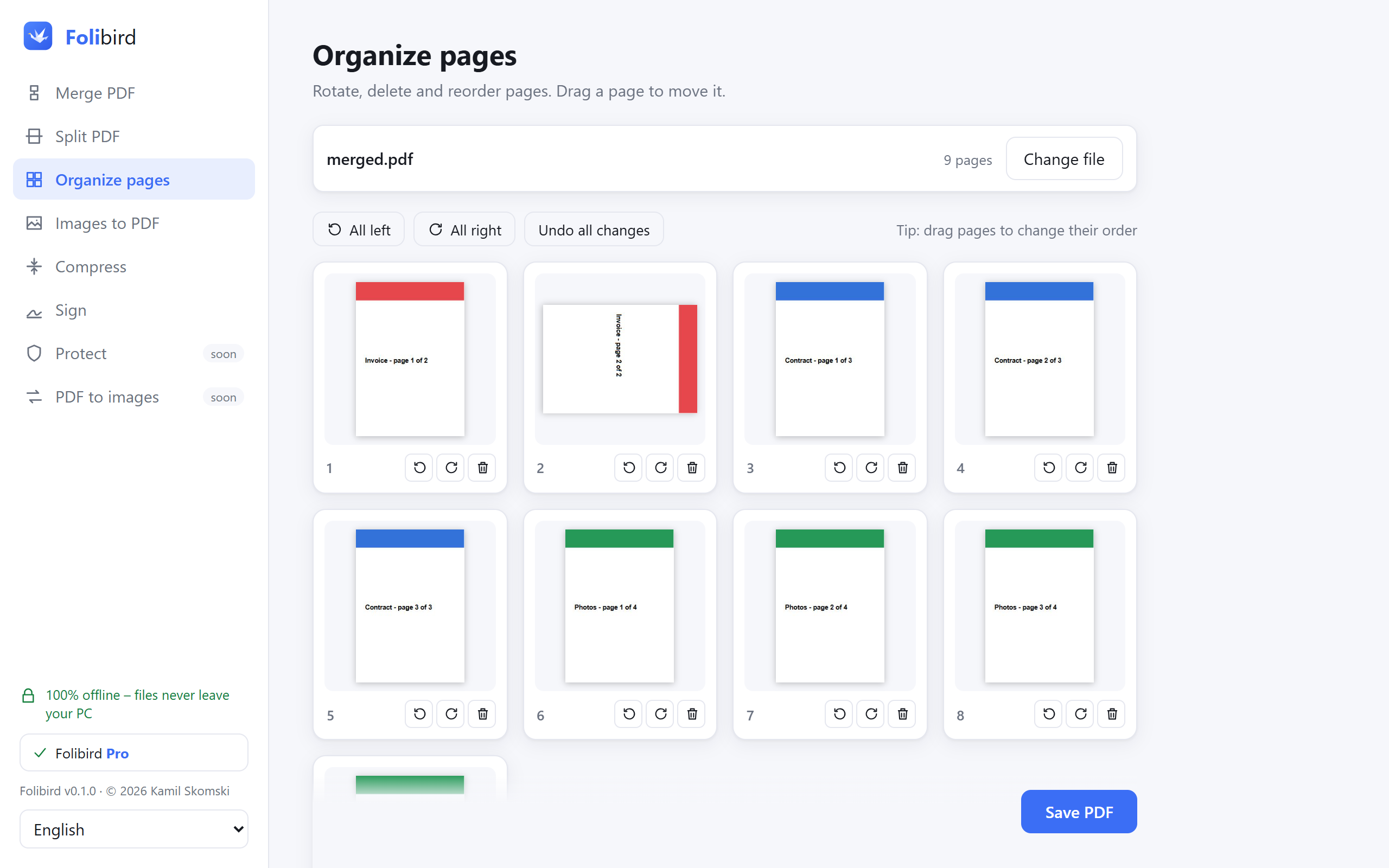
Step by step
Open Organize pages
Install Folibird (free), choose Organize pages and pick the PDF.
Delete the pages
Click the bin icon under every page you want to remove. The thumbnails update right away.
Reorder if needed
Drag pages to change their order, or rotate them with the arrows.
Save as a new PDF
Click Save PDF and choose a name. The original file stays untouched.
Download for Windows
Free · Windows 10 & 11 · 4 MB
Why do it with Folibird
- Free forever, no limits
- See every page before you delete it
- Private documents never leave your PC
- The original file is never changed
Frequently asked questions
Can I get a deleted page back?
Yes, until you save – click Undo all changes. After saving, the original file still has every page.
Can I keep only a few pages instead?
Yes – Split PDF saves a page range (e.g. pages 3–5) as a new file.
Does it work with large PDFs?
Yes, documents with hundreds of pages are fine.
More PDF guides
- How to sign a PDF without printing it
- How to fill in a PDF form without printing it
- How to make a PDF smaller to send by email
- How to merge PDF files into one
- How to password-protect a PDF
- How to add a watermark to a PDF
- How to convert JPG photos to a PDF
- How to make a scanned PDF searchable (OCR)
- How to permanently black out data in a PDF
- How to rotate PDF pages and save the change
- How to convert PDF to JPG
- How to split a PDF