
How to rotate PDF pages and save the change
A scanned page lies sideways or upside down, and rotating it in the PDF viewer doesn’t stick – next time it’s crooked again. Here’s how to rotate pages for good, so they stay right for everyone you send the file to.
Free forever – no watermark, no limits.
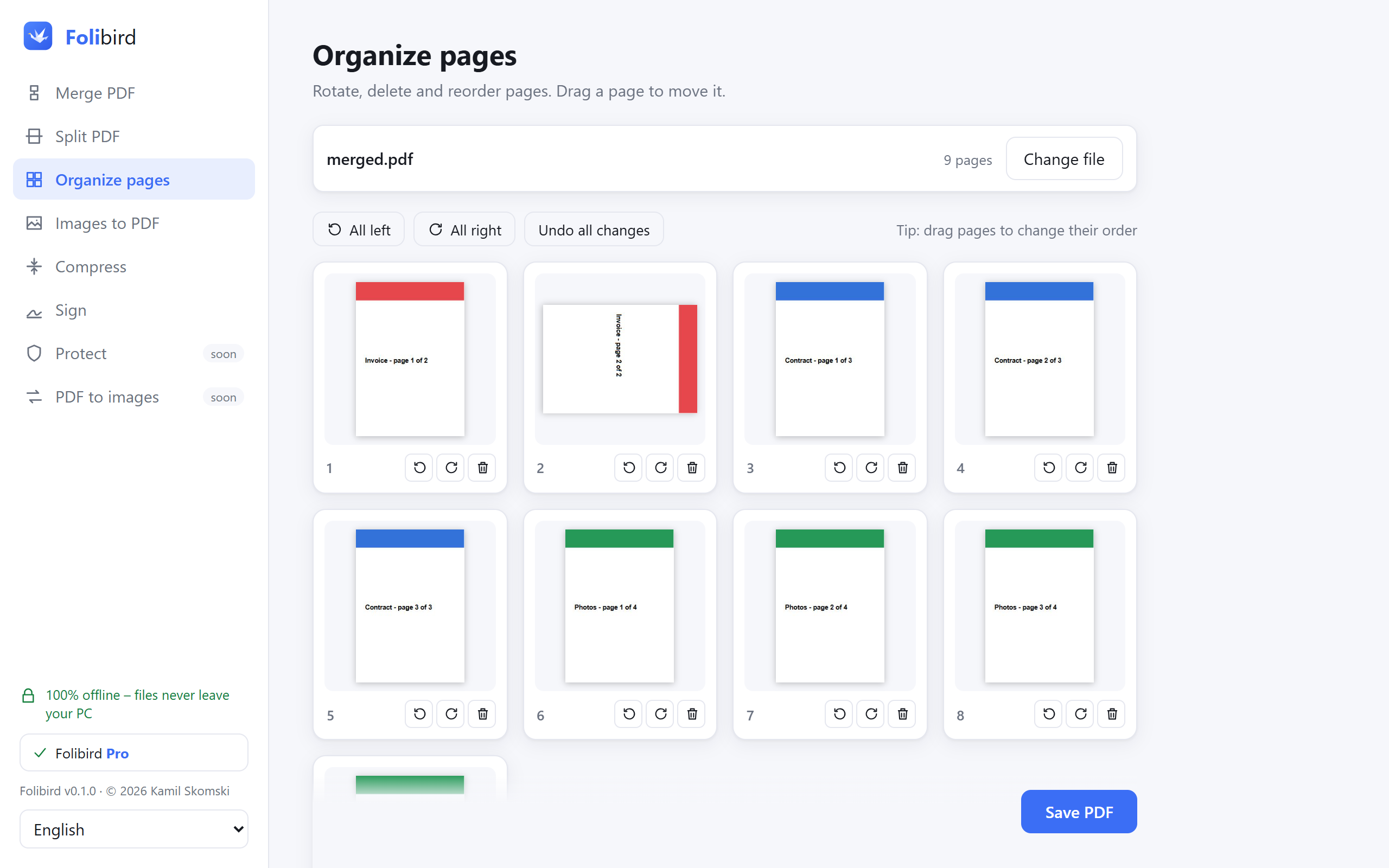
Step by step
Open Organize pages
Install Folibird (free) and choose Organize pages, then pick the PDF. You’ll see a thumbnail of every page.
Rotate the pages you need
Use the round arrows under a page to turn it left or right. To turn every page at once, use Rotate all left / right at the top.
Check the preview
The thumbnails show the result right away. Made a mistake? Undo all changes brings the original back.
Save the PDF
Click Save PDF. The rotation is saved in the file, so it opens the right way in every program.
Why do it with Folibird
- Free forever, no watermark
- Rotate single pages or all of them
- Works without internet – scans stay private
- Also reorder and delete pages in the same view
Frequently asked questions
Why does the rotation disappear after I close the viewer?
Most PDF viewers only turn the page on screen. Folibird saves the rotation into the file itself.
Does rotating reduce quality?
No. The page content isn’t re-rendered, only its orientation changes.
Can I rotate only some pages?
Yes – each page has its own rotate buttons.
More PDF guides
- How to sign a PDF without printing it
- How to fill in a PDF form without printing it
- How to make a PDF smaller to send by email
- How to merge PDF files into one
- How to password-protect a PDF
- How to add a watermark to a PDF
- How to convert JPG photos to a PDF
- How to make a scanned PDF searchable (OCR)
- How to permanently black out data in a PDF
- How to delete pages from a PDF
- How to convert PDF to JPG
- How to split a PDF