
How to convert JPG photos to a PDF
You took photos of a document with your phone, but the office, school or employer wants a PDF – ideally one file, not ten pictures. Here’s how to turn photos into a single, neat PDF on Windows, for free and without uploading them anywhere.
Free forever – no watermark, no limits.
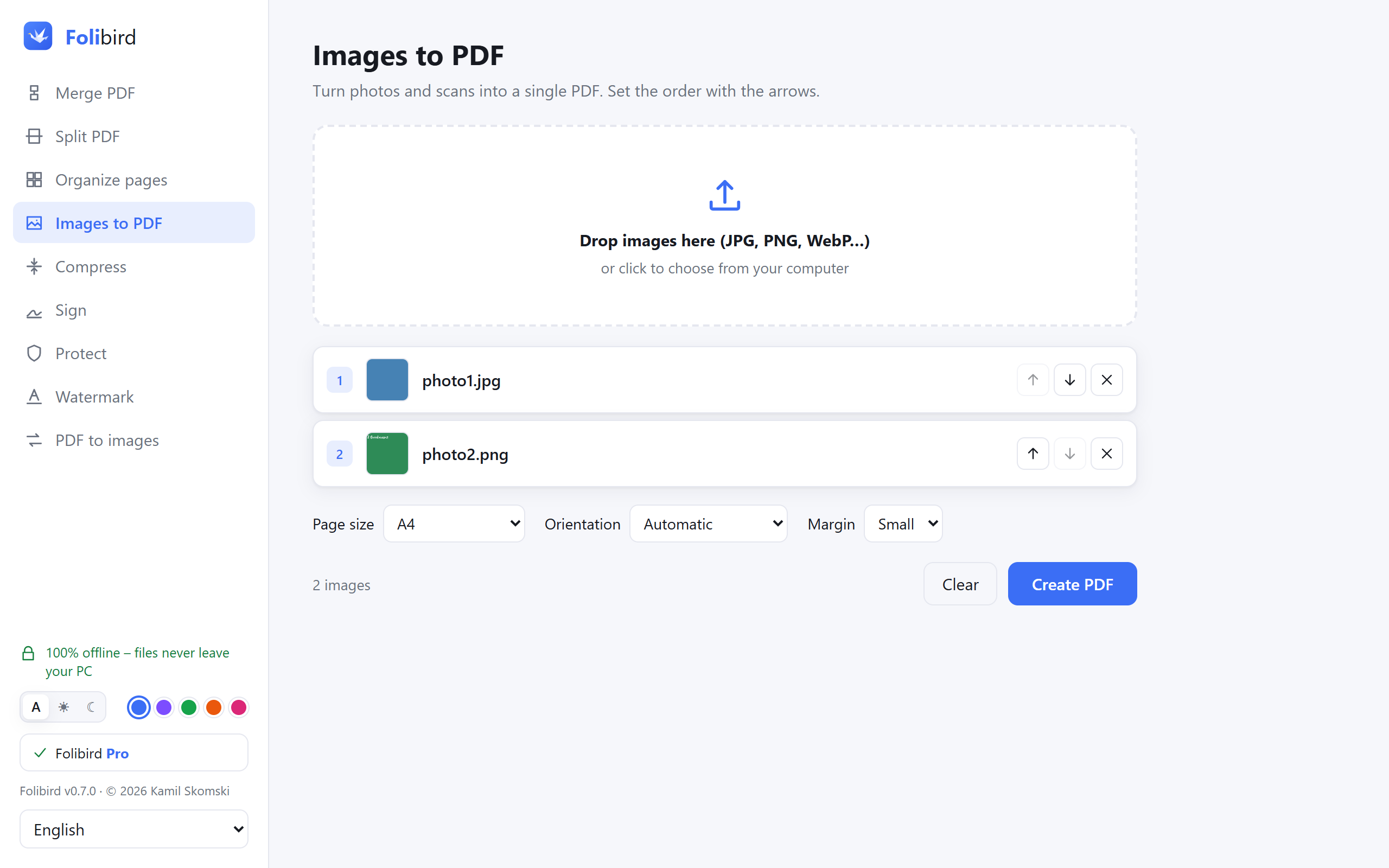
Step by step
Open the Images to PDF tool
Install Folibird and choose Images to PDF.
Add the photos
Drop the photos onto the window or click to pick them. JPG, PNG, WEBP, GIF and BMP are supported.
Set the order and page size
Arrange the photos with the arrows. Choose A4, US Letter or Same as image, the margin and orientation.
Create the PDF
Click Create PDF and choose a name. If the file is too big for email, run it through Compress.
Why do it with Folibird
- Free forever, no watermark, no limit on the number of photos
- Photos of documents stay private – nothing is uploaded
- Phone photos are automatically turned the right way up
- A4 pages look like a real printed document
Frequently asked questions
Is converting JPG to PDF free?
Yes – Images to PDF is free forever.
Can I put several photos into one PDF?
Yes, that’s exactly what it does: every photo becomes one page of a single PDF, in the order you set.
Can I do the opposite – PDF to JPG?
Yes, use the free PDF to images tool. You can choose JPG or PNG and the quality (96, 150 or 300 DPI).
The PDF from photos is huge – what now?
Phone photos are big. Use Compress with the Recommended level to make it many times smaller.