
How to edit existing text in a PDF
A contract has a typo in the name, an offer has last year’s date, a form shows the wrong account number – and you only have the PDF, not the original Word file. You don’t have to recreate the whole document. Here’s how to change the existing text right in the PDF on Windows, without uploading it anywhere.
Pro feature – try it 3 times for free. Pro costs $13 once, no subscription.
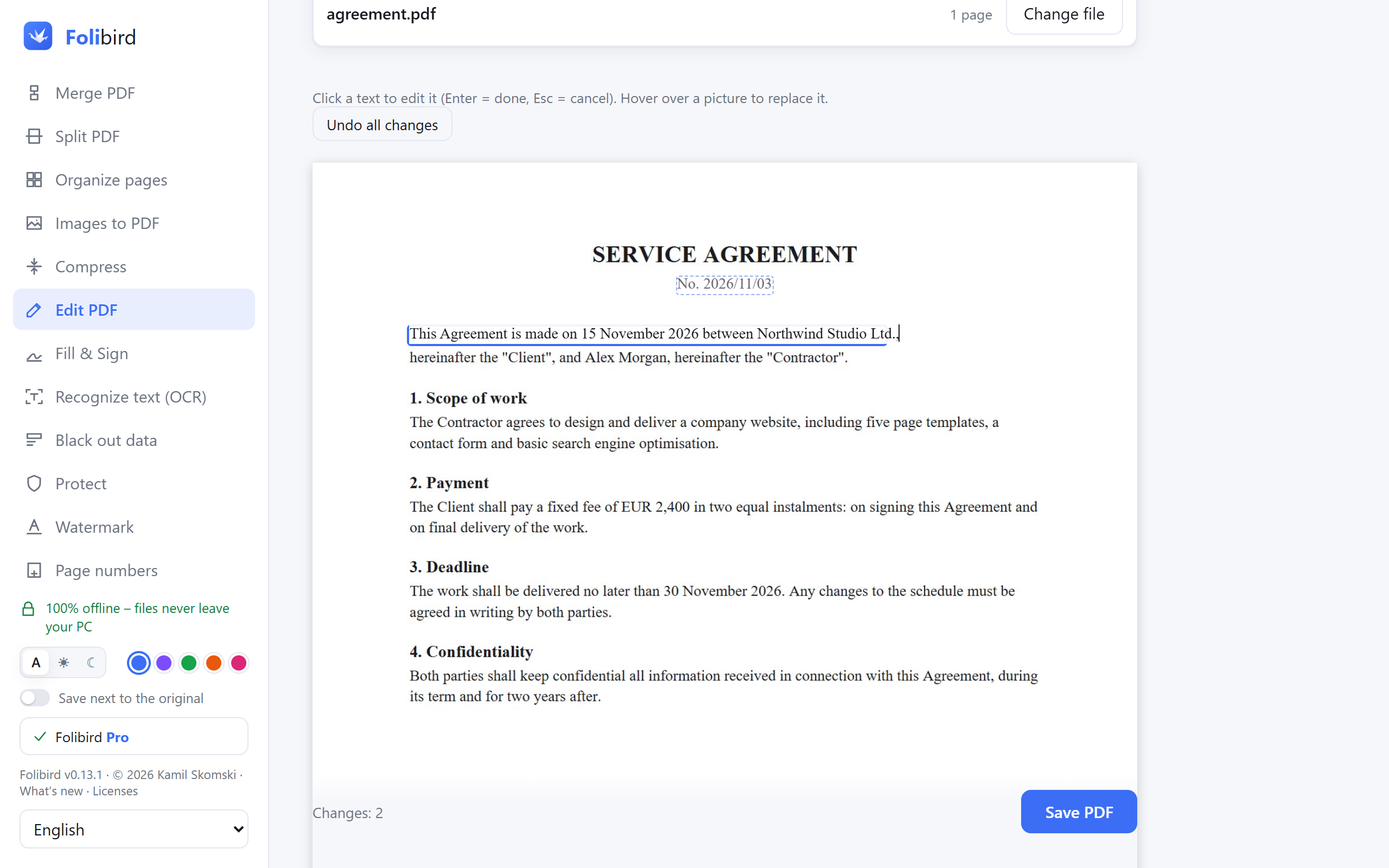
Step by step
Open Edit PDF
Install Folibird, choose Edit PDF and pick the file – or right-click it in File Explorer and choose Folibird → Edit PDF.
Click the text
Every piece of text can be clicked. Type the correction – a date, a name, a number – and press Enter. Esc cancels. The × deletes a line.
Swap a picture (optional)
Hover over a logo or photo and click Replace picture. The new one goes into the same place, keeping its proportions.
Save
Click Save PDF. The old text is really removed from the file and the new one is written in the same place, size and colour. The original stays untouched.
Why do it with Folibird
- Real replacement – the old text is gone from the file, not hidden under a box
- Same position, size and colour; the closest matching font from Windows, with full Polish characters
- Swap logos and pictures without stretching them
- Works offline – the document never leaves your PC
Frequently asked questions
Will the edited text look the same as before?
Very close: same place, size and colour, and Folibird picks the most similar installed font (Times New Roman, Arial, Calibri…). PDFs usually embed only the letters they use, so every editor – Acrobat included – has to substitute the font for new text.
Can I rewrite a whole paragraph?
You can change any line, but a longer paragraph doesn’t re-flow onto the next lines. For quick fixes – typos, dates, names, numbers – that’s exactly what you need.
Does it work on scans?
No – in a scan the text is a picture. Use Fill & Sign to type over it, or Black out data to hide something.
Is editing free?
Edit PDF is a Pro feature that you can try 3 times for free.
More PDF guides
- How to sign a PDF without printing it
- How to fill in a PDF form without printing it
- How to make a PDF smaller to send by email
- How to merge PDF files into one
- How to password-protect a PDF
- How to add a watermark to a PDF
- How to convert JPG photos to a PDF
- How to make a scanned PDF searchable (OCR)
- How to permanently black out data in a PDF
- How to rotate PDF pages and save the change
- How to delete pages from a PDF
- How to convert PDF to JPG
- How to split a PDF