
How to make a scanned PDF searchable (OCR)
You scanned a contract or got a PDF from a scanner, and you can’t search it or copy a single sentence – to the computer every page is just a picture. OCR (optical character recognition) reads the letters in the picture and adds a hidden text layer. The pages look exactly the same, but now Ctrl+F and copy work. Here’s how to do it on Windows, offline.
Pro feature – try it 3 times for free. Pro costs $13 once, no subscription.
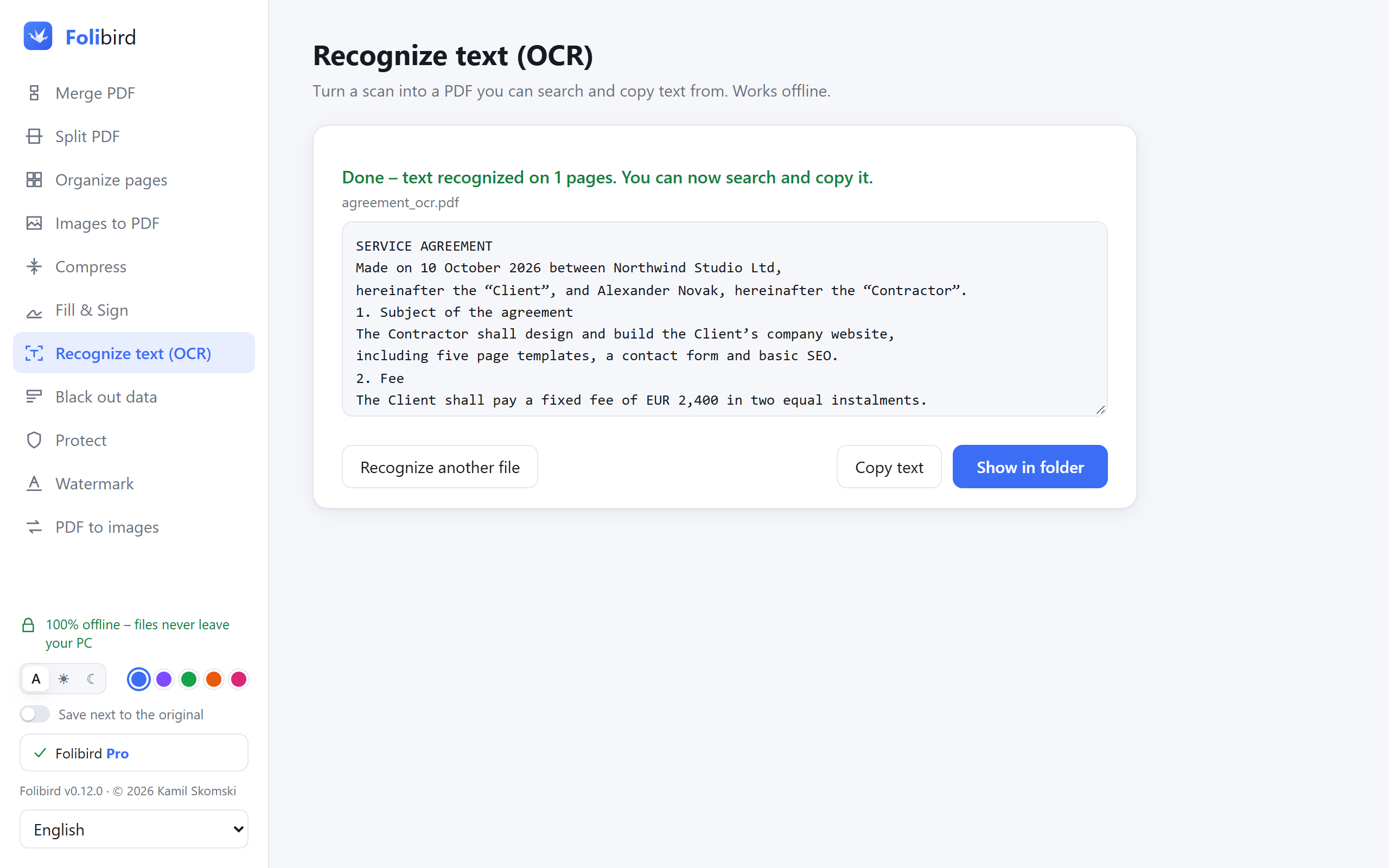
Step by step
Open Recognize text (OCR)
Install Folibird, choose Recognize text (OCR) and pick the scanned PDF – or several at once.
Choose the language
Pick the language of the document, e.g. English or Polish. The right language makes recognition much more accurate.
Recognize and save
Click Recognize text & save. Folibird reads the pages one by one; pages that already contain text are skipped.
Search and copy
Open the new PDF and press Ctrl+F – or use Copy text right in Folibird. Tick Also save the text as a .txt file if you want the plain text too.
Why do it with Folibird
- Works offline – scans of IDs, contracts and medical papers never leave your PC
- The pages look exactly the same – only an invisible text layer is added
- Uses the OCR engine built into Windows 10 and 11 – nothing extra to install
- Many files at once with Pro
Frequently asked questions
What is OCR?
Optical character recognition: the program “reads” letters in an image of text and turns them into real, searchable text.
Which languages are supported?
The languages installed in your Windows. English and your Windows display language are usually there; more can be added in Windows Settings → Time & language → Language & region.
Can it read handwriting?
Not reliably. OCR works best on printed text in clear scans; handwriting is usually recognized poorly.
Is OCR free?
Text recognition is a Pro feature that you can try 3 times for free.
More PDF guides
- How to sign a PDF without printing it
- How to fill in a PDF form without printing it
- How to make a PDF smaller to send by email
- How to merge PDF files into one
- How to password-protect a PDF
- How to add a watermark to a PDF
- How to convert JPG photos to a PDF
- How to permanently black out data in a PDF
- How to rotate PDF pages and save the change
- How to delete pages from a PDF
- How to convert PDF to JPG
- How to split a PDF