
How to split a PDF
You only need a few pages from a long document, or every page as a separate file – for example invoices scanned together into one PDF. Here’s how to split a PDF on Windows, for free and without uploading it.
Free forever – no watermark, no limits.
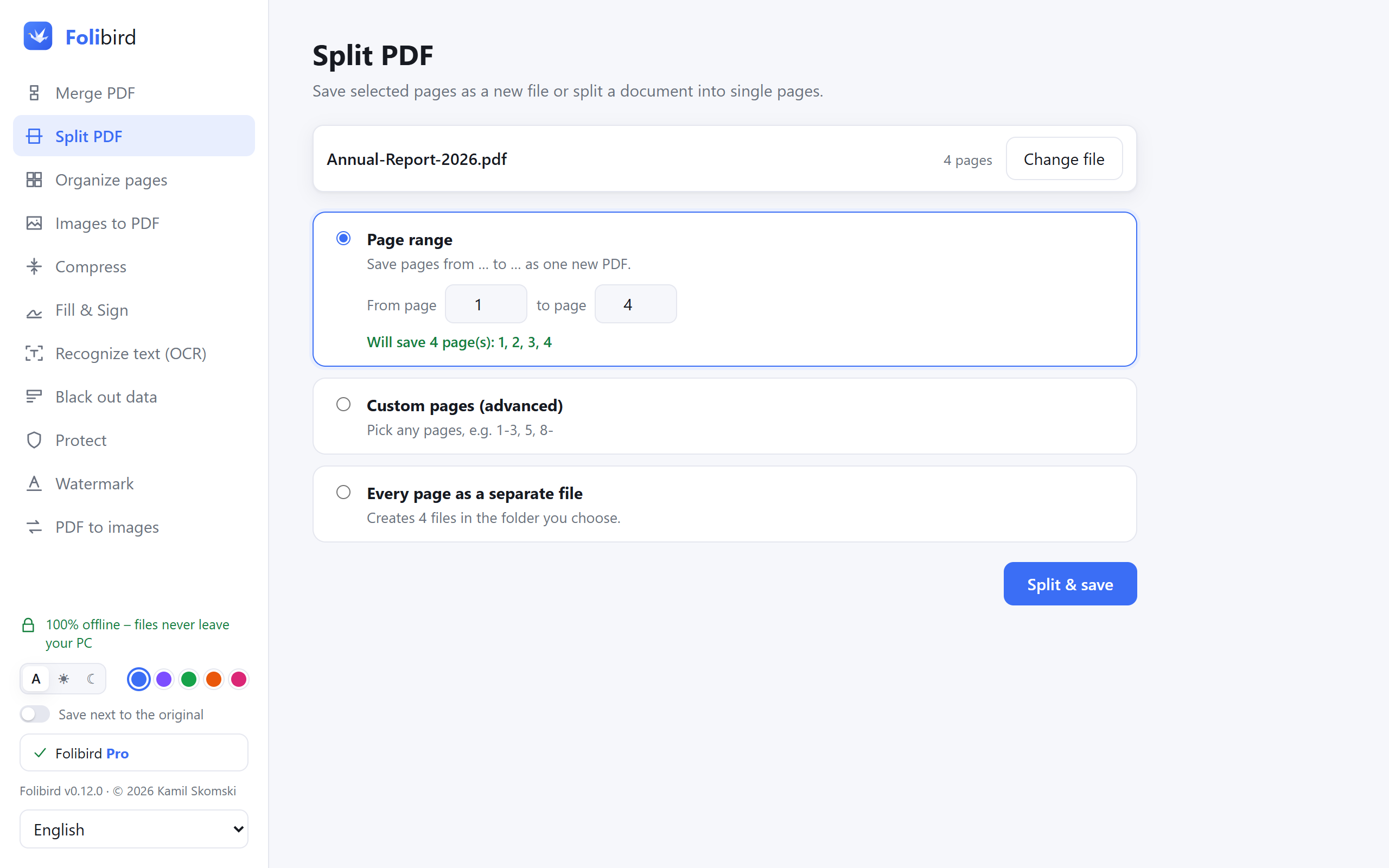
Step by step
Open Split PDF
Install Folibird (free), choose Split PDF and pick the file.
Choose how to split
Page range saves pages from … to … as one new PDF. Selected pages takes any pages, e.g. 1-3, 5, 8-. Every page separately makes one file per page.
Check what will be saved
Below the options you’ll see exactly which pages will be saved.
Save
Click Split & save. The original PDF stays as it is.
Why do it with Folibird
- Free forever, no limits
- Page ranges, any pages, or every page
- Works offline – contracts and invoices stay private
- The original file is never changed
Frequently asked questions
How do I extract one page from a PDF?
Choose Page range and type the same number in both fields, e.g. from 4 to 4.
Can I split a PDF into single pages?
Yes – Every page separately saves each page as its own file in the folder you choose.
Can I join files back together?
Yes, with the free Merge PDF tool.
More PDF guides
- How to sign a PDF without printing it
- How to fill in a PDF form without printing it
- How to make a PDF smaller to send by email
- How to merge PDF files into one
- How to password-protect a PDF
- How to add a watermark to a PDF
- How to convert JPG photos to a PDF
- How to make a scanned PDF searchable (OCR)
- How to permanently black out data in a PDF
- How to rotate PDF pages and save the change
- How to delete pages from a PDF
- How to convert PDF to JPG