
How to merge PDF files into one
An application, a tax return or a project report often has to be sent as a single PDF – but you have it in several files. Here’s how to combine PDFs into one on Windows, for free and without uploading your documents to an online merger.
Free forever – no watermark, no limits.
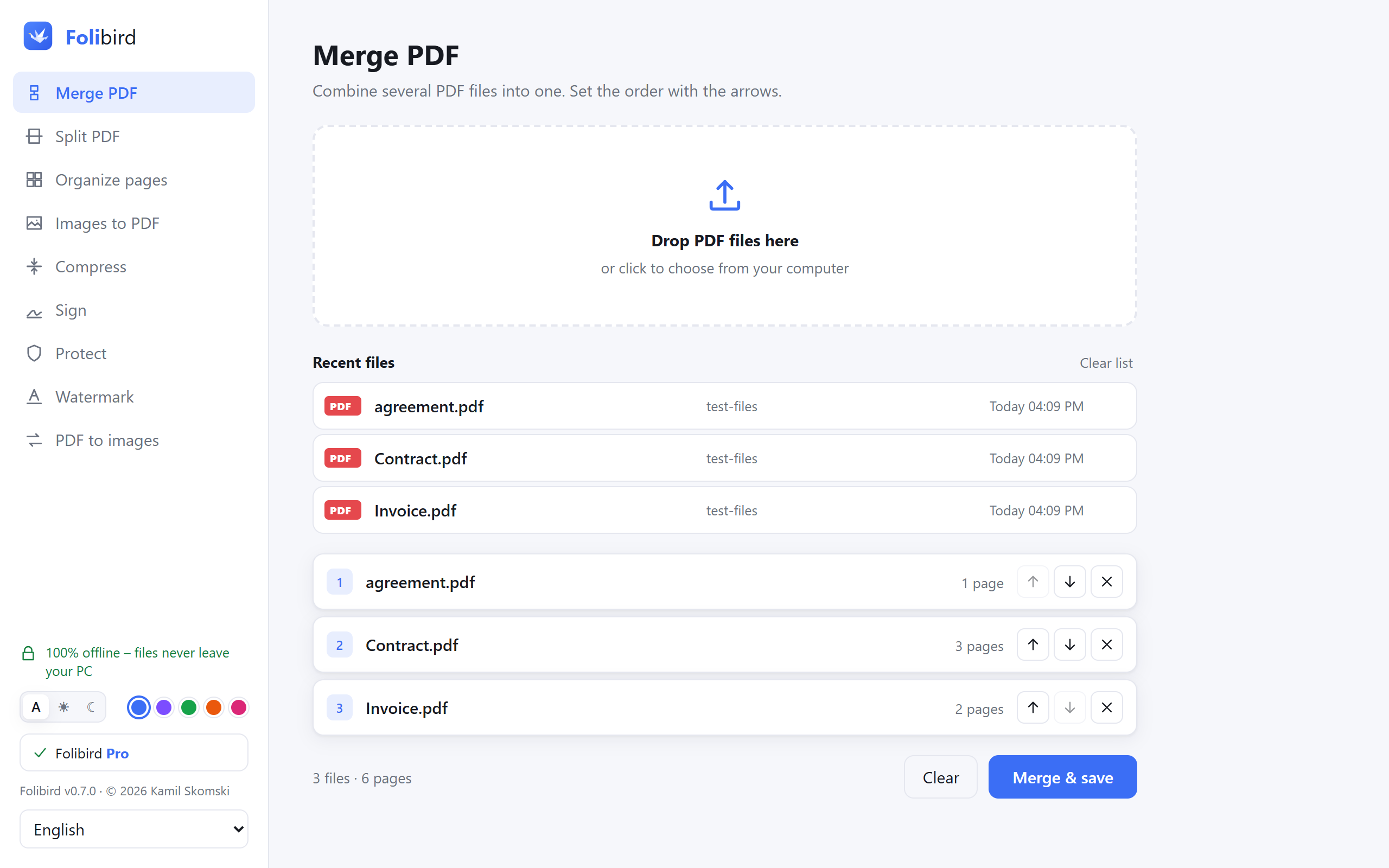
Step by step
Open the Merge tool
Install Folibird and choose Merge PDF. Tip: select several PDFs in File Explorer, right-click and choose Folibird → Merge PDF.
Add the files
Drop all the PDFs onto the window or click to pick them. You can add more at any time.
Set the order
Use the up and down arrows to arrange the files. Each row shows how many pages the file has.
Merge and save
Click Merge & save and choose a name. Need to remove or rotate single pages afterwards? Use the free Organize pages tool.
Why do it with Folibird
- Completely free – no watermark, no file or page limits
- Your documents stay on your PC
- Fast even with hundreds of pages
- Merge straight from the right-click menu in File Explorer
Frequently asked questions
Is merging PDFs really free?
Yes. Merging is free forever, with no watermark and no limits on the number of files or pages.
Can I merge PDFs with images?
First turn the images into a PDF with the free Images to PDF tool, then merge that PDF with the others.
Can I change the order of pages, not just files?
Yes – open the merged PDF in Organize pages to drag pages, rotate them or delete the ones you don’t need.
Does it work with password-protected PDFs?
Remove the password first with the Protect tool (you need to know the password), then merge.